
Have you downloaded an APK file on your Android phone, but APK Not Installing on Android? This problem can happen for several reasons, including an incomplete download, limited storage, an incompatible Android version, or a conflict with an existing app.
Many Pakistani Android users download apps and games outside the Google Play Store. However, an APK file may not install correctly on every device. The solution depends on the error message, your phone settings, and the app’s requirements.
In this guide, you will learn nine practical ways to fix APK installation problems. Whether you use a Samsung, Infinix, Tecno, Xiaomi, Vivo, Oppo, or another Android phone, these steps can help you identify the cause and choose the right solution.
APK Not Installing on Android?
Before changing your phone settings, try to identify the problem. Android may reject an APK file if it is damaged, incompatible with your device, or blocked by a security feature.
Here are some common reasons:
- The APK download did not finish properly.
- Your phone does not have enough free storage.
- The app requires a newer Android version.
- The APK does not support your device’s processor or architecture.
- An older version of the same app is already installed.
- Android blocks the installation because of your security settings.
- The file is not a standard APK and requires a different installation method.
- The app package is damaged or comes from an unreliable source.
You do not need to try every possible solution immediately. Start with the easiest fixes and move to the next step if the problem continues.
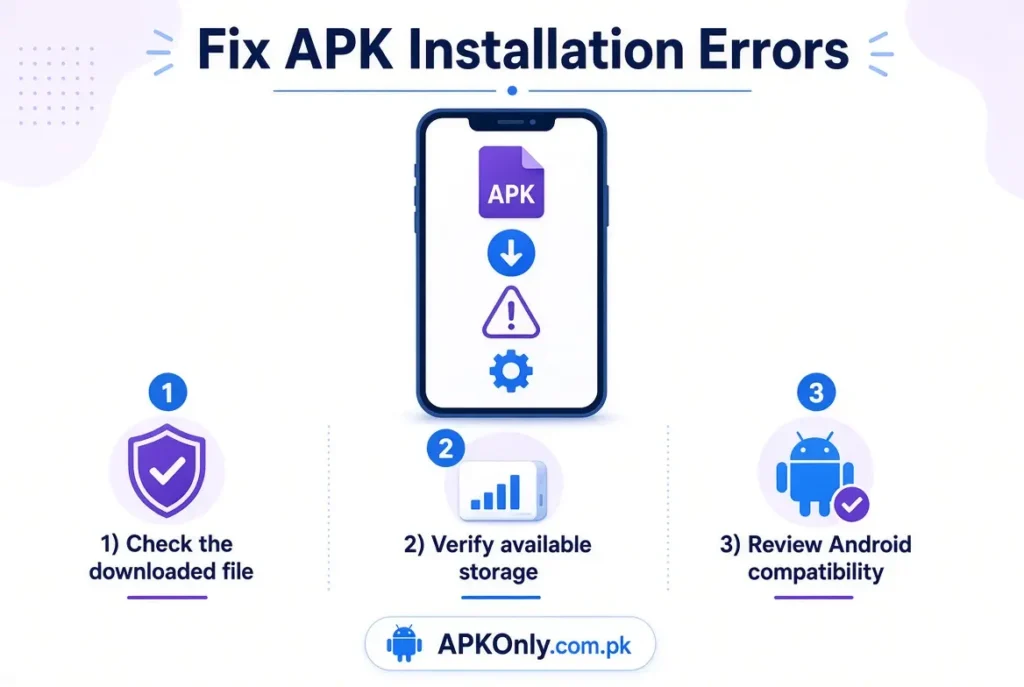
1. Check the Downloaded APK File
A damaged or incomplete file is one possible reason for installation failure. Internet interruptions can sometimes prevent a download from completing correctly.
Follow these steps:
- Open the Files or File Manager app on your phone.
- Find the Downloads folder.
- Locate the APK file you want to install.
- Check whether the file has a normal
.apkextension. - If the download stopped unexpectedly, delete the incomplete copy and download the file again from a source you trust.
- Wait until the download finishes before opening it.
Do not rename a file simply to make it appear to be an APK if APK Not Installing on Android. Changing a filename does not convert one file format into another.
If the same file repeatedly fails to install, check whether the provider offers a compatible version for your device. Avoid downloading the same app from random websites just to find a working copy.
2. Free Up Storage Space on Your Android Phone
Your phone needs sufficient free space to download, unpack, and install an application. A device with very little available storage may display an installation error.
You can check your storage by following these steps:
- Open Settings.
- Select Storage or a similarly named option.
- Review how much space remains on your device.
- Remove unnecessary downloads, duplicate files, or unwanted videos.
- Uninstall apps you no longer use.
- Clear the cache of selected apps if necessary.
- Restart your phone and try the installation again.
Avoid deleting unfamiliar system files or folders. Some of these files may be necessary for your phone to operate correctly.
If you regularly download Android games, keep some free space available for updates and additional game data. Larger games may need more room than their APK file size suggests.
3. Allow Installation From the App You Used to Download the File
Android can APK Not Installing on Androids from sources other than the Google Play Store. Depending on your Android version and device manufacturer, you may need to authorize the specific app that opens the APK file.
For example, you might download a file through Chrome and then open it in your phone’s File Manager.
Try these steps:
- Open Settings on your phone.
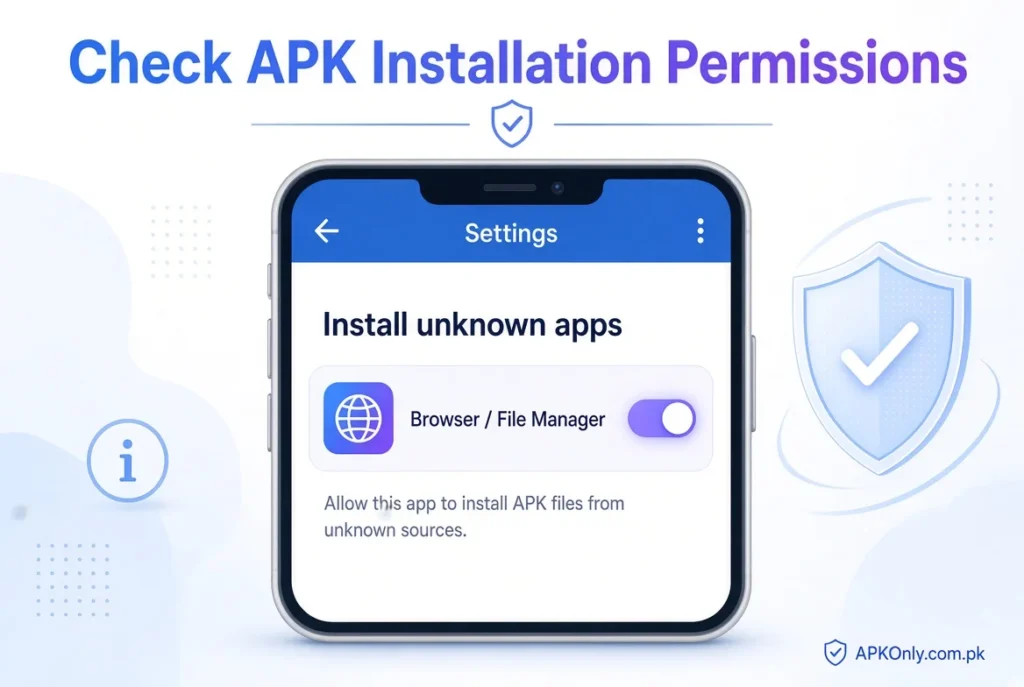
- Search for Install unknown apps, or look for a similar option under Apps or Security.
- Select the browser or file manager you are using to open the APK.
- If Android provides the option, allow that app to install unknown apps.
- Return to the downloaded file and try again.
Menu names and locations differ between Android devices. You can use the Settings search bar if you cannot find the relevant option.
Only grant this permission to an app when you understand why it needs access. Turn the permission off again when you no longer need it.
Important: Allowing APK installation does not prove that a file is safe. Android security warnings should not be ignored simply to complete an installation.
4. Check Your Android Version and Device Compatibility
Not every Android application supports every phone. An app may require a minimum Android version, a particular processor architecture, or hardware features that your device does not have.
To check your Android version:
- Open Settings.
- Select About Phone or About Device.
- Find the Android version information.
- Compare it with the minimum requirement stated by the app’s developer.
- Check whether the app supports your phone model.
For example, an app that requires a newer Android release may not work on an older device. Installing another copy of the same incompatible APK will not solve the problem.
If your phone supports an official system update, you can check for it under Software Update or System Update.
If an update is unavailable, look for an officially supported version of the app that matches your device. Do not install modified system software or use unofficial workarounds unless you fully understand the security and reliability risks.
5. Remove Conflicts With an Existing App Version
Sometimes APK Not Installing on Android because an older version of the same app is already on the phone.
This may happen when the existing app and the new APK have different signing certificates, or when the package does not support the intended update.
Before making changes, consider whether the app contains important information.
Try these steps:
- Open Settings and go to Apps.
- Find the existing version of the app.
- Check whether the app is already installed.
- If the developer provides an official update method, try that first.
- Back up important information if the app supports backups.
- If you decide to uninstall the old version, understand that locally stored data may be deleted.
- Try installing the compatible APK again.
Do not uninstall an existing app casually if it contains important account information, saved progress, or files that you cannot recover.
If Android reports a signature or package conflict, obtain an update from the original developer or the same trusted source as the installed version. Avoid modified APKs that claim to bypass this restriction.
6. Check Whether the File Is an APK, XAPK, or APKS Package
Not every Android app download is a single, standard APK file. Some websites distribute apps in formats such as XAPK or APKS, or provide split APK packages containing several components.
Trying to open one of these files as if it were a regular APK may not work.
Here’s what you should know:
- APK: A standard Android application package that can usually be opened through a file manager.
- XAPK: A distribution format that may bundle an APK with additional app data or files.
- APKS: A package format that can contain multiple APK components for different device configurations.
- Split APKs: Separate package components that must be installed together in a compatible way.
If your download is not a standard APK, check the provider’s installation instructions.
Use only a reputable, trusted installer when one is genuinely required, and review its permissions before proceeding. Avoid unknown installation tools that request unnecessary access to your contacts, messages, accessibility services, or other sensitive information.
Never rename an XAPK or APKS file to .apk and expect it to work. A filename change does not convert the underlying package format.
7. Restart Your Phone and Clear Relevant App Cache
Temporary software issues can occasionally interfere with downloads or installation attempts. A restart is a simple troubleshooting step that may help resolve these problems.
Follow this process:
- Save your work and close unnecessary apps.
- Restart your Android phone.
- Wait for the home screen to load completely.
- Open the File Manager and try the installation again.
If the APK Not Installing on Android problem continues, you can clear the cache of the browser or download app you used.
- Open Settings.
- Select Apps.
- Choose the relevant browser or download manager.
- Open Storage or Storage & Cache.
- Select Clear Cache, if available.
- Retry the download or installation.
Be careful when selecting storage options. Clear Cache and Clear Data are different actions. Clearing an app’s data may remove settings, saved sessions, or locally stored information.
Avoid changing settings for unfamiliar system apps. If the installer itself appears to malfunction repeatedly, use your device manufacturer’s support guidance rather than deleting system components.
8. Review Android Security Warnings
Android includes security protections that can warn you about potentially harmful applications. Google Play Protect may scan apps and warn about software that appears unsafe, even if you downloaded it outside the Play Store.
If you see a warning, stop and investigate the source.
Here is what you should do:
- Check the app developer’s identity and official website.
- Confirm that the download page belongs to the expected provider.
- Review the permissions requested by the app.
- Scan the file with a reputable security service when possible.
- Check whether the provider publishes a digital signature or other verifiable authenticity information.
- Delete the file if the source is suspicious or the warning indicates a serious threat.
Do not disable Play Protect or bypass a harmful-app warning just because an installation fails. A warning does not always mean that a file is malicious, but it deserves careful attention.
If you cannot verify the file’s authenticity, the safest option is not to install it.
9. Download a Compatible Copy From a Trusted Source
If the previous solutions do not work, the APK itself may be incompatible, damaged, outdated, or incorrectly packaged.
You can investigate the problem by checking the source and the app requirements.
- Return to the developer’s official website or a trusted distribution source.
- Confirm the app name and version.
- Read the Android compatibility requirements.
- Check whether the provider offers a standard APK or a split package.
- Download the file again using a stable internet connection.
- Compare the file’s published checksum or signature, if the provider supplies one.
- Avoid unofficial modified versions that promise extra rewards, unlocked features, or unrestricted access.
If the developer no longer supports your Android version, you may need to use a different app or a supported device.
Do not assume that an older version is safe simply because it installs successfully. Older releases may contain security weaknesses or lack important fixes.
What Do Common APK Installation Errors Mean?
The exact wording of an error can help you identify the appropriate solution. The table below covers several common messages and possible next steps.
| Error message | Possible reason | What to try |
|---|---|---|
| App not installed | Package conflict, incompatibility, or damaged file | Check compatibility and package details |
| Parse error | Invalid, incomplete, or unsupported package | Download a compatible copy |
| Insufficient storage | Not enough available space | Free up storage |
| Blocked by security policy | Android or device security restrictions | Review the warning and source |
| Package conflicts with an existing app | Different signing certificate or package details | Use the original developer’s update |
| Installation keeps stopping | Temporary system issue or problematic package | Restart and retry a verified file |
These messages do not always have a single cause. For example, “APK Not Installing on Android” is a general error that can appear for several different reasons.
How Pakistani Android Users Can Avoid APK Not Installing on Android
If you regularly download games and applications in Pakistan, a few habits can make the process easier and safer.
- Download apps from the developer’s official website or a reputable distribution platform.
- Check the minimum Android version before downloading.
- Use a reliable Wi-Fi or mobile data connection.
- Keep enough free storage for installations and updates.
- Read the permissions requested by each app.
- Keep Android and Google Play Protect up to date.
- Avoid APK files shared through unknown social media accounts or random messaging groups.
- Back up important files and app data before uninstalling an existing version.
- Be cautious of apps that promise guaranteed income or demand unexplained payments.
- Never share your banking PIN, mobile wallet PIN, or one-time password with an app provider or an unknown support agent.
Pakistani users who rely on JazzCash, Easypaisa, or mobile banking should be particularly careful when an unfamiliar app requests financial information. An installation guide cannot establish that an app or its payment service is legitimate.
For games and reward apps, review the platform’s terms, withdrawal conditions, and applicable local rules before making a payment.
Final Thoughts
APK Not Installing on Android does not always indicate a serious problem with your Android phone. In many cases, the cause relates to storage, compatibility, package conflicts, or the way the file was downloaded.
Start by checking the file and your available storage. Then review installation permissions, Android compatibility, existing app versions, and the package format. If Android displays a security warning, investigate it rather than automatically bypassing the protection.
At APKOnly.com.pk, users should be able to find practical information that helps them understand Android apps and installation issues. Taking a few minutes to verify an APK before installing it can help you avoid unnecessary errors and reduce security risks.
FAQs For Why APK Not Installing on Android
1. Why does my APK say “APK Not Installing on Android”?
The file may be incompatible with your Android version, conflict with an existing installation, or contain damaged package data. Check the error details, device requirements, and download source before trying again.
2. How do I install an APK on a Samsung, Infinix, or Tecno phone?
Download a compatible APK from a trusted source, open it through your File Manager, and follow Android’s prompts. If the phone asks for permission to install unknown apps, review the source and authorize it only if you trust it.
3. Can I install an APK without enabling unknown apps?
Android generally requires authorization for installations from sources outside approved app distribution channels. The exact process depends on your device and Android version. Do not grant permission to an untrusted app merely to complete the installation.
4. Why does my APK download successfully but APK Not Installing on Android?
Downloading and installing are separate processes. A file can download successfully but still be incompatible, incorrectly packaged, or signed differently from an existing app. Check the package format and compatibility requirements.
5. Is it safe to download APK files from any website?
No. Some APK websites distribute legitimate software, while others may host modified or harmful files. Verify the source, developer, app permissions, and available authenticity information before installing anything.